How to Program Samsung Hospitality TVs Quickly Using USB Cloning (Video)
June 22nd, 2026
Share Article:
Problem
Programming multiple TVs can be a tedious task that takes a long time
Solution
Multiple Samsung Hospitality TVs can be programmed swiftly with USB cloning
Learn More
We've provided a step-by-step video that shows how to get this done
Problem
Programming multiple TVs can be a tedious task that takes a long time
Solution
Multiple Samsung Hospitality TVs can be programmed swiftly with USB cloning
Learn More
We've provided a step-by-step video that shows how to get this done
Setting up multiple hospitality TVs doesn’t have to be a repetitive, time-consuming task. Samsung’s USB cloning feature allows you to configure one Samsung hospitality TV exactly how you want it, use it as a master setting, then copy those settings to every other unit in just minutes. This is especially useful in hotels and healthcare environments where consistency and efficiency are critical.
In the video below, the process is demonstrated step by step, starting with creating a fully configured “master” TV. Once your channels, volume limits, and display preferences are set, you can export those settings to a USB drive through the TV’s installation menu. From there, simply plug the USB into additional TVs and import the configuration. This allows each unit to mirror the master setup quickly and accurately.
By using USB cloning, you not only speed up installation, but also reduce errors and ensure a consistent experience across all TVs. If updates are needed later, you can modify the master TV and repeat the process, making this a scalable and reliable solution for managing Samsung hospitality displays.
Questions About Samsung Hospitality TVs or Other Hospitality Tech Products?
Programming each hotel TV individually is a nightmare. It’s time-consuming and prone to errors. Imagine the chaos of inconsistent settings across rooms. But what if there was a way to streamline this process?
Let's set up one Samsung 'Master' TV, clone its settings, and apply them to hundreds of TVs in minutes. Achieve uniformity effortlessly with just a USB drive.
Step 1: Set one TV with all your preferred hospitality settings. This will be the "MASTER TV"
Step 2: Plug in the USB drive into the USB Port located on the back of the TV
Step 3: Access the Interactive Menu by pressing "MENU, 119, ENTER" – in that order
Step 4: Select "Clone TV to USB" then press ENTER. When the message pops up, press ENTER again.
Step 5: Once the cloning is complete you can then unplug the USB from the "MASTER TV"
Step 6: Repeat steps 2 and 3 on the other TV. Select "Clone USB to TV" then press ENTER. When the message pops up, press ENTER again
Once the cloning is complete you can safely unplug the USB from the TV.
Experience seamless plug-and-play with USB Cloning. Enjoy perfect settings across all rooms instantly.
Need assistance ordering New TVs?
Reach out to Transworld for expert support. Email sales at www.twstransworld.com or call 800-424-8550.
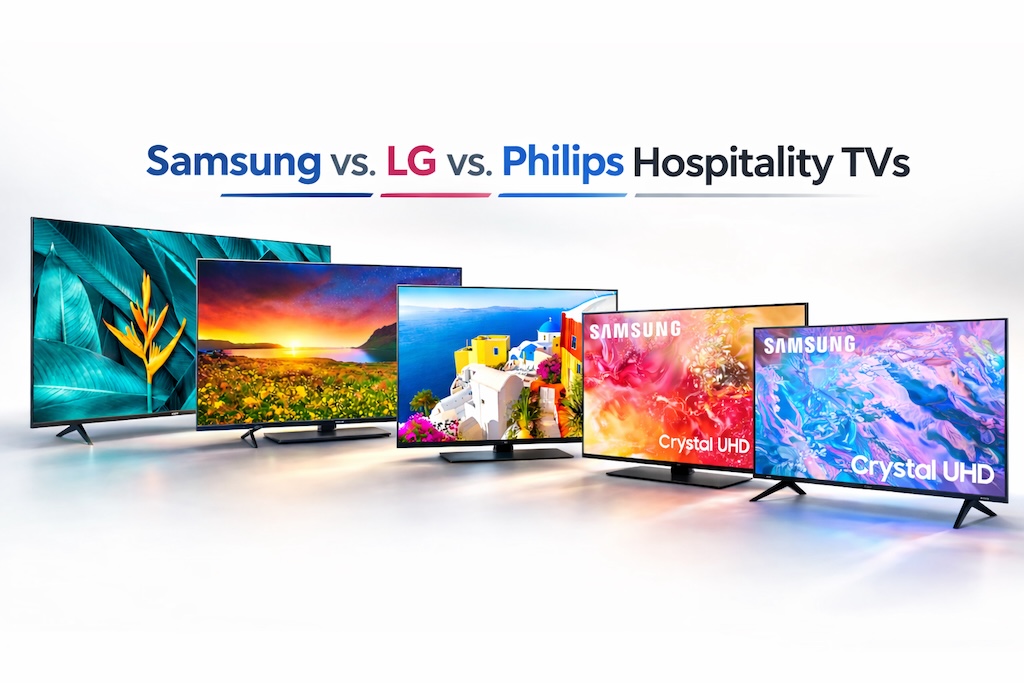
Compare Samsung, LG, and Philips hospitality TVs. Explore apps, Netflix, Google Cast, DRM, Wi-Fi, and more to choose the best hotel TV for your property.