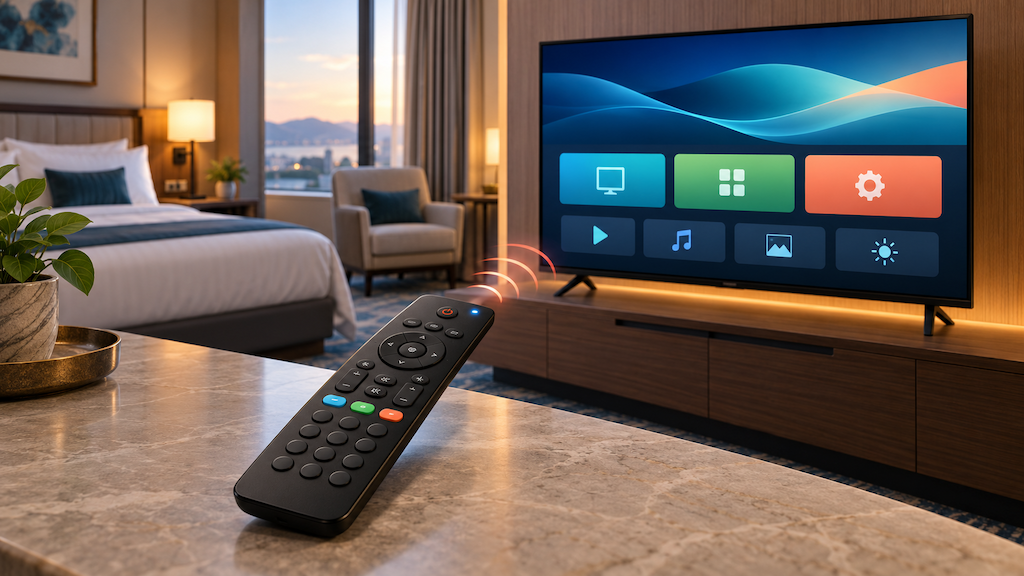
The Clean Remote SCR10 is designed for hospitality environments and works with many Samsung, LG, RCA and Philips commercial TVs. For basic TV functions, there is usually no brand code to enter. Install two AA batteries, point the remote at the TV and test it.
Programming is needed when the TV is connected to a guest room entertainment system, when the property uses certain Netflix or streaming integrations, or when a room requires a multi-code setup. Philips installations may also need the learning feature for Input control.
Below is a do-this-now walkthrough you can hand to hotel staff.
Before You Start (2-Minute Checklist)
Confirm that the TV is a commercial hospitality model
The SCR10 is made for compatible commercial hotel TVs. It is not intended for consumer TVs such as Insignia, Roku TV or Fire TV models.
Identify the system in the guest room
If the TV connects to Enseo, WorldVue, Bonvoy, GuestTek, Sonifi, DirecTV AEP, Dish Evolve or another guest entertainment platform, you will need the correct system code.
Have the original TV remote available if possible
The original remote is useful when a function must be copied to the SCR10. This is especially helpful for the Input command on some Philips TVs.
Install two fresh AA batteries
If the battery compartment has an optional retaining screw, remove it first. Use a coin to rotate the battery lock to the unlocked position, lift the cover and install the batteries according to the polarity markings. The indicator light to the left of the Power button should flash when you press a button.
Do You Need to Program the SCR10?
Start with the simplest test:
Turn on the TV using the SCR10.
Test Volume Up, Volume Down and Mute.
Test Channel Up, Channel Down and the navigation buttons.
If the room has a guest entertainment or streaming platform, test its Home, Guide, app and navigation functions too.
If the basic TV controls work and the room does not use an external guest entertainment platform, setup is complete. You do not need to enter a Samsung, LG or Philips brand code.
If Power and Volume work but platform-specific buttons do not, program the SCR10 with the correct guest entertainment system code below.
Step-By-Step: Program the SCR10 for a Guest Entertainment System
Step 1) Enter programming mode
Press and hold OK/SELECT and MENU at the same time.
Keep holding both buttons until the indicator light to the left of the Power button stays solid. Then release the buttons.
Step 2) Enter the three-digit system code
Use the number buttons to enter the correct three-digit code for the room system.
Guest entertainment system | SCR10 code |
|---|
Enseo | 004 or 006 |
World Cinema / WorldVue | 005 |
Bonvoy | 006 |
GuestTek | 007 or 008 |
Sonifi | 010, 011, 012 or 014 |
AEP Box with LG, Samsung or RCA commercial TV | 013 |
DirecTV AEP 2 | 014 |
DirecTV AEP 3 | 027 |
Sonifi Total Design | 014 |
Dish Network Evolve with MPI/MTI cable protocol | 026 |
LG Pro:Centric Direct Netflix | 038 |
Samsung LYNK Cloud Netflix | 041 |
Step 3) Confirm that the code was stored
The indicator light will turn off after a valid code is entered. If the light flashes repeatedly, start again and re-enter the code.
Step 4) Test every guest-facing function
Test Power, Volume, Mute, channels, navigation, Guide, Home, apps and any casting or streaming controls used by the property.
Some platforms list more than one code. If the first code controls only part of the system, repeat the process with the next code listed.
Hotel rollout tip: Program and test one room completely before preparing the rest of the property. Record the working code by TV model and entertainment platform so engineering staff can reproduce the setup consistently.
Brand-Specific Setup: Samsung, LG and Philips
Samsung hotel TVs
For normal operation with a compatible Samsung commercial TV, install the batteries and test the remote. No Samsung brand code is required.
Use these codes only for the listed configurations:
Multi-Code 2 will work only if the Samsung TV supports multi-code operation and the TV has already been configured for the matching setting.
LG hotel TVs
For normal operation with a compatible LG commercial TV, no LG brand code is required.
Use these codes only for the listed configurations:
As with Samsung, the LG TV must support multi-code operation and be configured for the corresponding setting before the remote will respond correctly.
Philips hotel TVs
For basic operation with a compatible Philips commercial TV, no Philips brand code is required.
Some Philips setups require an original Philips remote to teach the SCR10 a command. A common example is the Input function. Philips Multi-Code 2 is also set up through the SCR10 learning feature rather than a three-digit code. Confirm that the TV supports Multi-bed or Multi-code and configure the TV first.
To add Philips Input control:
Use the learning steps below to copy the INPUT command from the original Philips remote to the SCR10 Input button.
Press INPUT on the SCR10 to open the source menu.
Use the Up and Down buttons to highlight a source.
Press OK/SELECT to choose it.
How to Use the SCR10 Learning Feature
The learning feature lets one SCR10 button copy a command from the original TV remote.
Press and hold OK/SELECT and MENU until the indicator light stays solid.
Place the SCR10 and the original remote facing each other, with their infrared transmitters aligned.
Press the button on the SCR10 that you want to program once.
Press the corresponding button on the original remote once.
Watch for the SCR10 indicator light to flash, confirming that the command was learned.
Test the new function at the TV.
Learning a command replaces the function previously assigned to that SCR10 button. If you program the wrong command, reset the remote and start again.
How to Reset the SCR10 to Factory Defaults
If the wrong system code was entered or learned buttons are causing problems, reset the remote:
Press and hold OK/SELECT and CC at the same time.
Keep holding until the indicator light flashes three times.
Release the buttons and test the remote again.
The reset restores the SCR10's default operation for compatible LG, Samsung, RCA and Philips commercial TVs. If the room uses a guest entertainment system, re-enter the appropriate system code after the reset.
Troubleshooting Quick Hits
The indicator light does not flash
Confirm that both AA batteries are installed in the correct direction.
Replace both batteries with a fresh matching pair.
Check that the battery contacts are clean and making contact.
Power and Volume work, but Home, Guide or streaming buttons do not
The remote is controlling the TV, but it may not be programmed for the room's guest entertainment system.
Identify the platform and enter the matching three-digit code.
If more than one code is listed, test each code in the order shown.
The indicator light flashes repeatedly after code entry
Only some system functions work
Try the next code listed for the same platform.
Confirm that the TV and guest entertainment equipment are on and communicating.
Test the original system remote to separate a remote problem from a TV or platform problem.
The Philips Input button does not open the source menu
Use an original Philips remote to teach its Input command to the SCR10.
After learning, use Up, Down and OK/SELECT to choose the source.
Multi-Code 2 does not work
Confirm that the TV model supports Multi-bed or Multi-code operation.
Verify that the matching mode has been enabled on the TV itself.
Use 042 for LG, 043 for Samsung, and the learning feature for Philips.
The remote will not control a cable-company set-top box
The SCR10 is not designed to control standard cable-company set-top boxes. It supports the compatible hotel TV and guest entertainment systems listed in the product instructions.
The room still does not respond after programming
Reset the SCR10 to factory defaults, confirm the TV model and room platform, then program the remote again. If multiple rooms show the same issue, check the property system configuration before replacing remotes.
Operations Tip for Hotels: Build One Known-Good Setup
Before programming a full batch of remotes, create one verified room profile for each combination of TV brand, TV model and guest entertainment platform. Label the working setup in the engineering log and include the SCR10 code, any learned buttons and the date tested.
This gives front desk and maintenance teams a reliable reference when a remote is replaced, batteries are changed or a room is converted to a different TV platform.
Questions About Clean Remote or Hospitality TV Accessories?
Transworld carries the Clean Remote Universal Remote SCR10 and other Clean Remote options for hospitality.
If you need help matching remotes to Samsung, LG or Philips hotel TVs, contact our hospitality technology products team and we can point you in the right direction.
Technical reference: Clean Remote SCR10 instructions, November 21, 2025, version 2. Always confirm the TV model, system configuration and current manufacturer instructions before a property-wide rollout.